Configuration
After installing the YubiKey Passkey Enabler, your Android device must be configured before using the app. Configuration consists of the following:
Enabling the app as a passkey provider service (required)
This is a mandatory step that allows the YubiKey Passkey Enabler to be used to perform FIDO2 operations.
Ensuring that NFC connectivity is toggled on (recommended)
To use the YubiKey Passkey Enabler over NFC, NFC connectivity must be enabled on your Android device (if available). We recommend verifying the NFC connectivity status before use.
Changing the PIN entry requirement (optional)
If desired, you can configure the app to prompt for PIN entry prior to connecting your security key by toggling the Always ask for PIN setting in the YubiKey Passkey Enabler.
Adjusting your app colors (optional)
Don’t like the colors in the YubiKey Passkey Enabler app? Toggle your Android device’s theme and/or color scheme.
Enable the app as a passkey provider service in your Android settings
Before the YubiKey Passkey Enabler can be used to perform FIDO2 operations on your Android device, it must first be enabled as a passkey provider service in your Android settings. This allows the app to be used with Android’s Credential Manager.
After configuring this setting, when you attempt to perform a FIDO operation (such as authentication), the YubiKey Passkey Enabler will appear on screen as a selectable option for interacting with your passkeys.
The YubiKey Passkey Enabler can be enabled as either the “preferred” service or an “additional service” in your Android passkey settings. When set as an additional service, you may be required to click through additional screens to select the YubiKey Passkey Enabler as the service to use during a FIDO2 operation.
To configure your passkey provider service settings on your Android device, do the following:
Open the YubiKey Passkey Enabler and click Enable in settings on the app’s home screen.
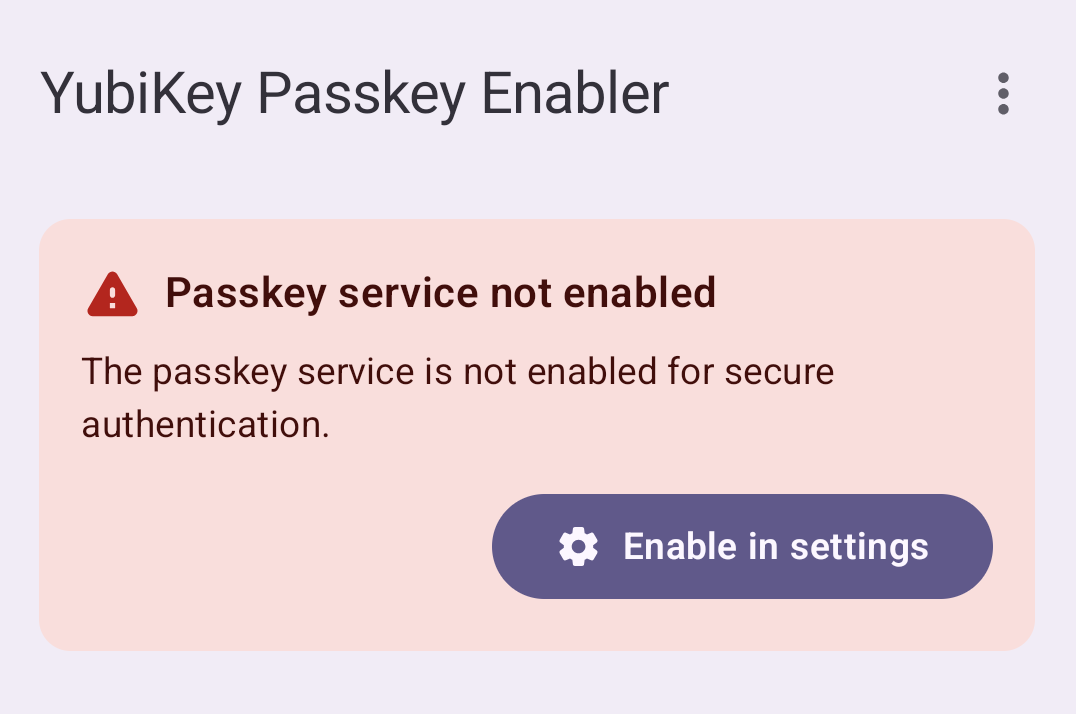
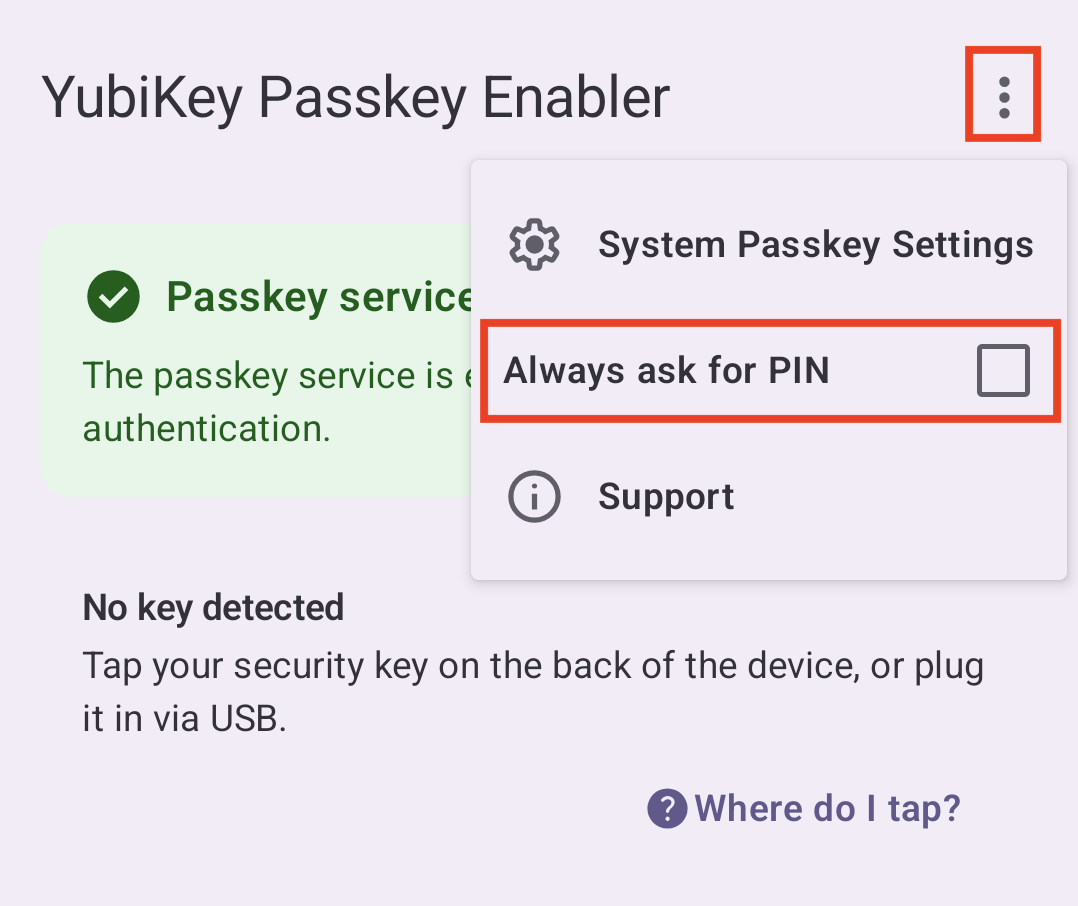
Alternatively, you can access these settings by clicking the menu icon in the upper right corner of the app and selecting System Passkey Settings.
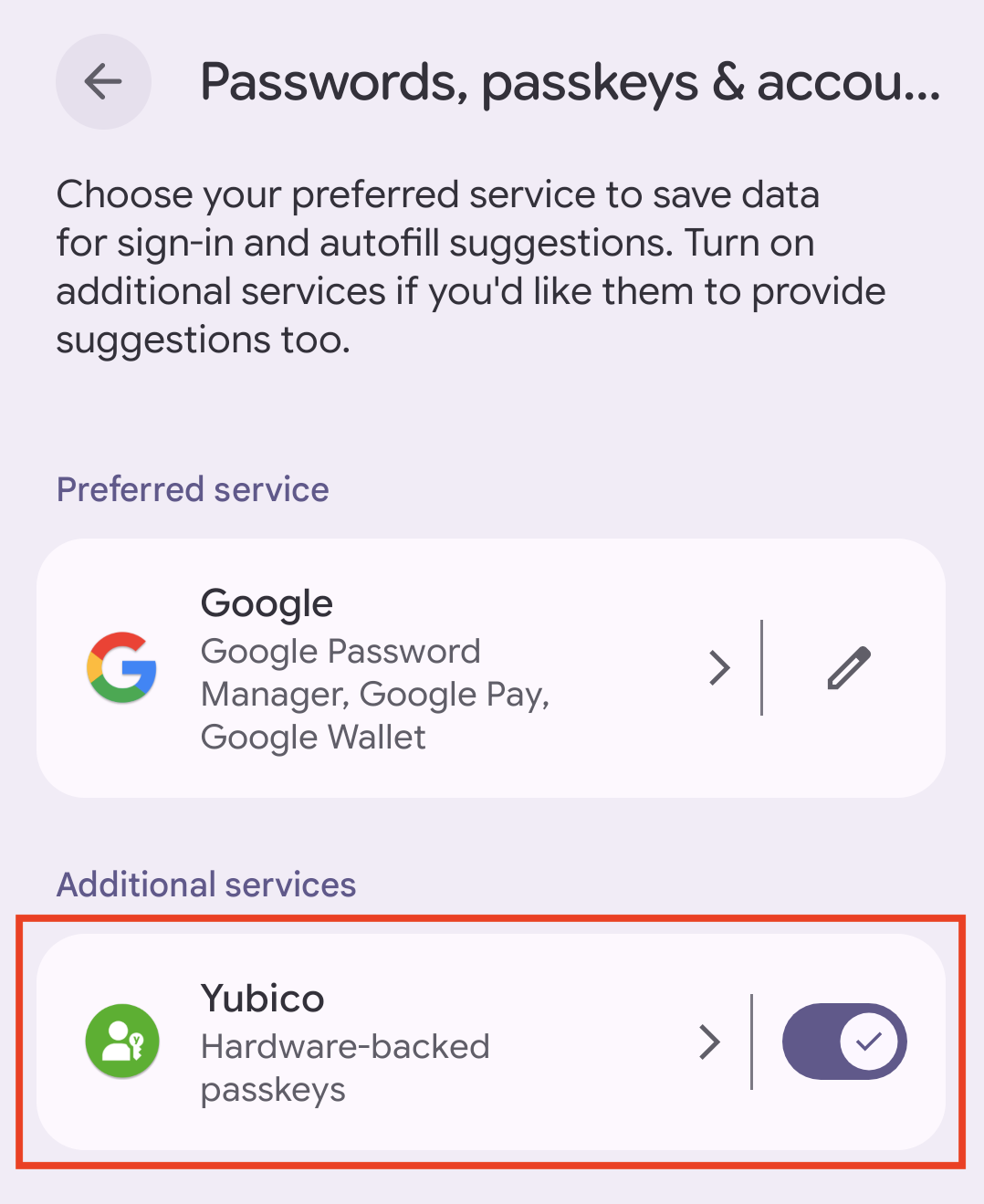
To enable the app as an “additional service”, move the toggle next to Yubico to the “on” position under the Additional services section.
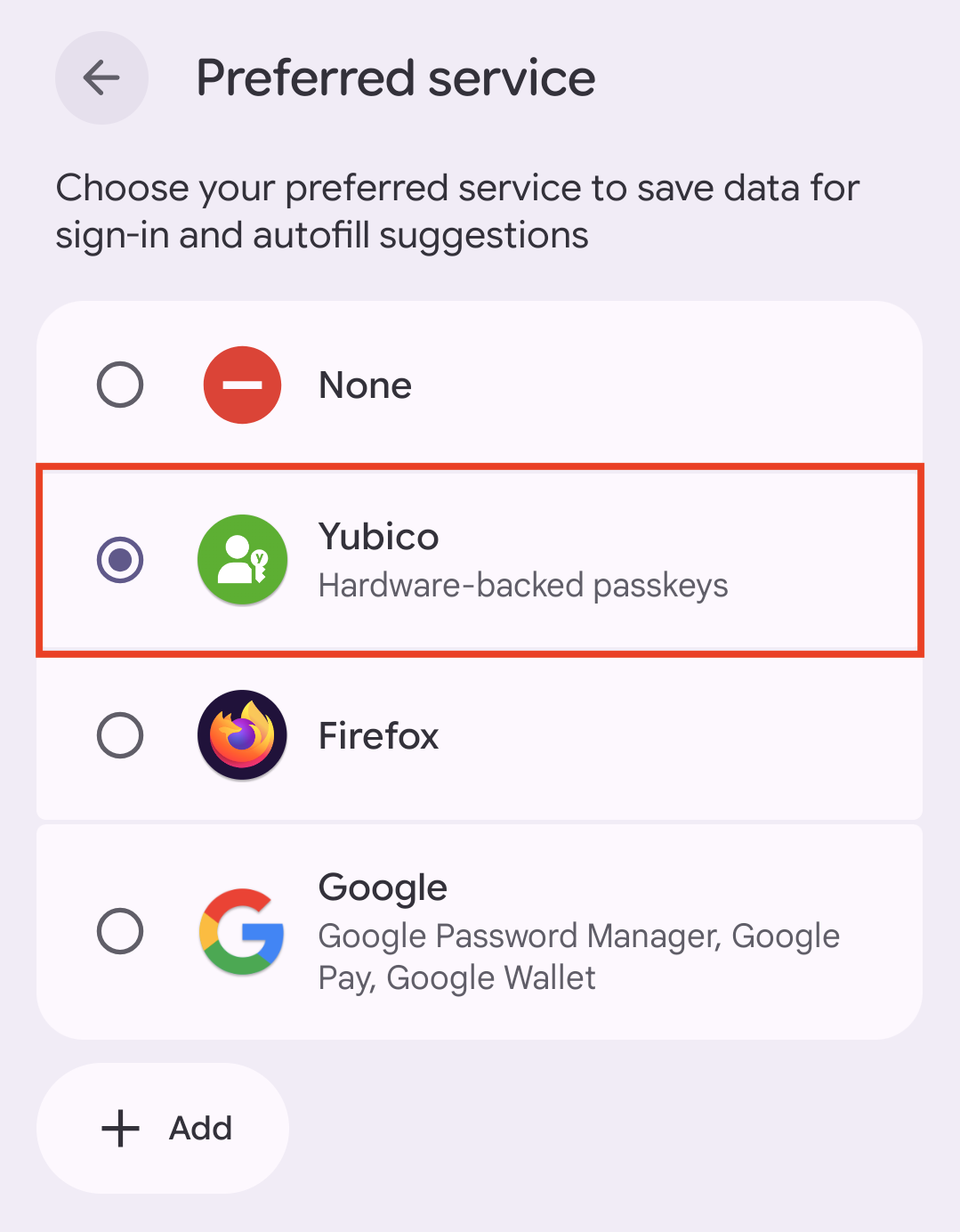
To enable the app as the “preferred service”, click the pencil icon next to the name of the current preferred service, and select Yubico.
Note
If you set the YubiKey Passkey Enabler as the preferred service, you can always re-enable the previous preferred service (depending on your Android device, this is often Google Password Manager) as an additional service in your device settings.
Click the arrow icon in the upper left corner to return to the YubiKey Passkey Enabler home screen. If the app was successfully enabled as a passkey provider service, you will see a green Passkey service enabled message.
Toggle NFC connectivity
To use the YubiKey Passkey Enabler with an NFC-enabled Android device and security key, verify that NFC connectivity on your Android device is toggled on.
To do so, open the YubiKey Passkey Enabler app. If you see the “NFC is disabled on this device” message near the bottom of the screen, click the Enable NFC button to open your device’s NFC settings. Toggle NFC connectivity to the “on” position and return to the YubiKey Passkey Enabler app. If the connectivity setting was correctly applied, the NFC message will have disappeared.
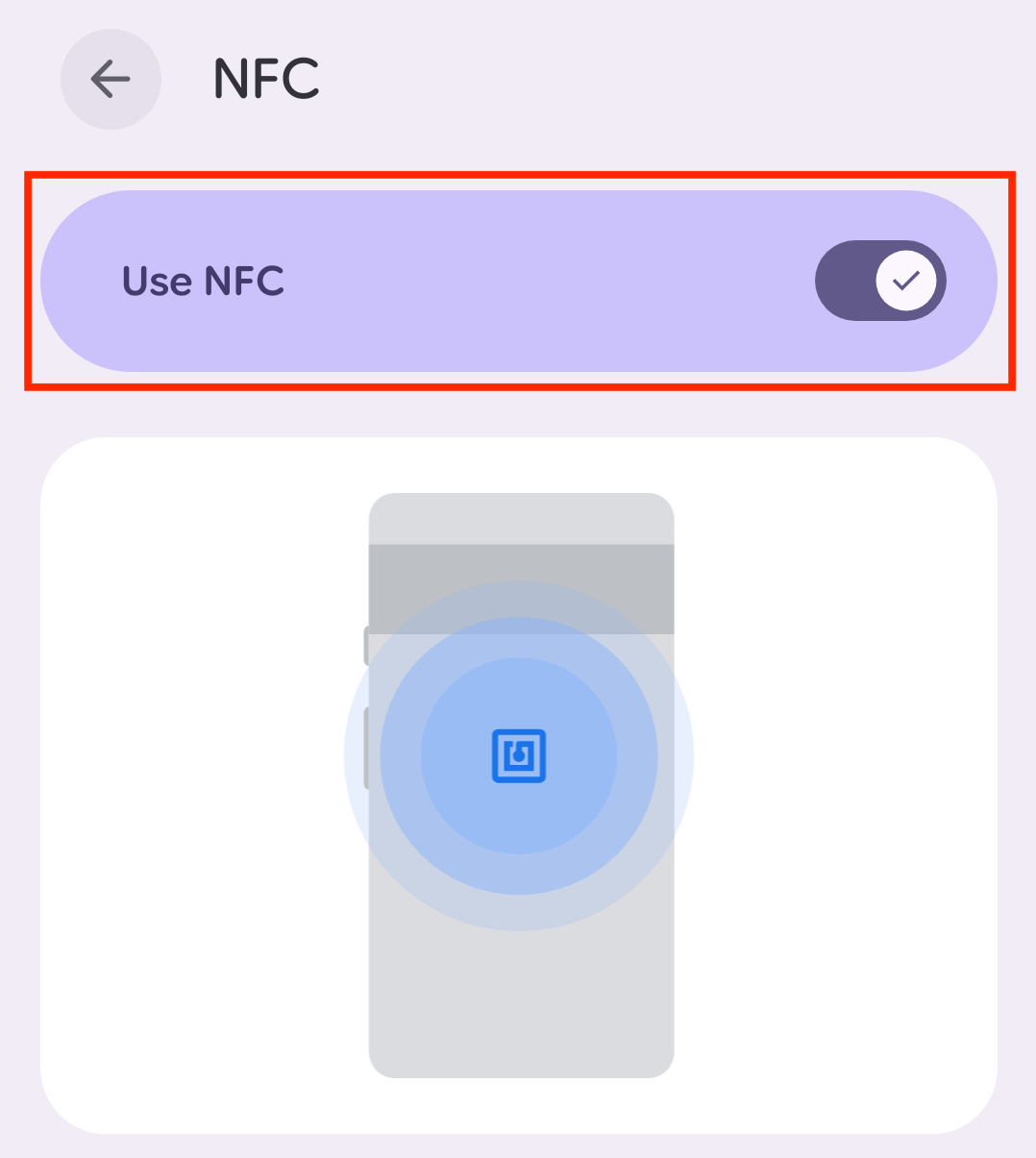
Alternatively, you can find your device’s NFC connectivity settings by going to your device’s main settings and searching “NFC”.
Tip
On Pixel phones, NFC settings can be found by going to Settings > Connected devices > Connection preferences > NFC.
Always ask for PIN
Always ask for PIN is an optional setting that is off by default. If the setting is enabled, the YubiKey Passkey Enabler app will prompt for the PIN prior to connecting your security key during a FIDO2 operation.
For NFC connections, this setting reduces the number of required NFC interactions by one, providing a faster passkey flow.
To enable or disable Always ask for PIN, click the menu icon in the upper right corner of the app and check (enable) or uncheck (disable) the box next to Always ask for PIN.
App colors
The colors used in the YubiKey Passkey Enabler are affected by two settings on your Android device: theme and color scheme. These settings are why the colors shown in screenshots in this user guide may differ from the colors observed in the app on your Android device.
Theme only has two options (light/dark), but several options are available for color scheme, which is typically part of the “Wallpaper & style” settings.
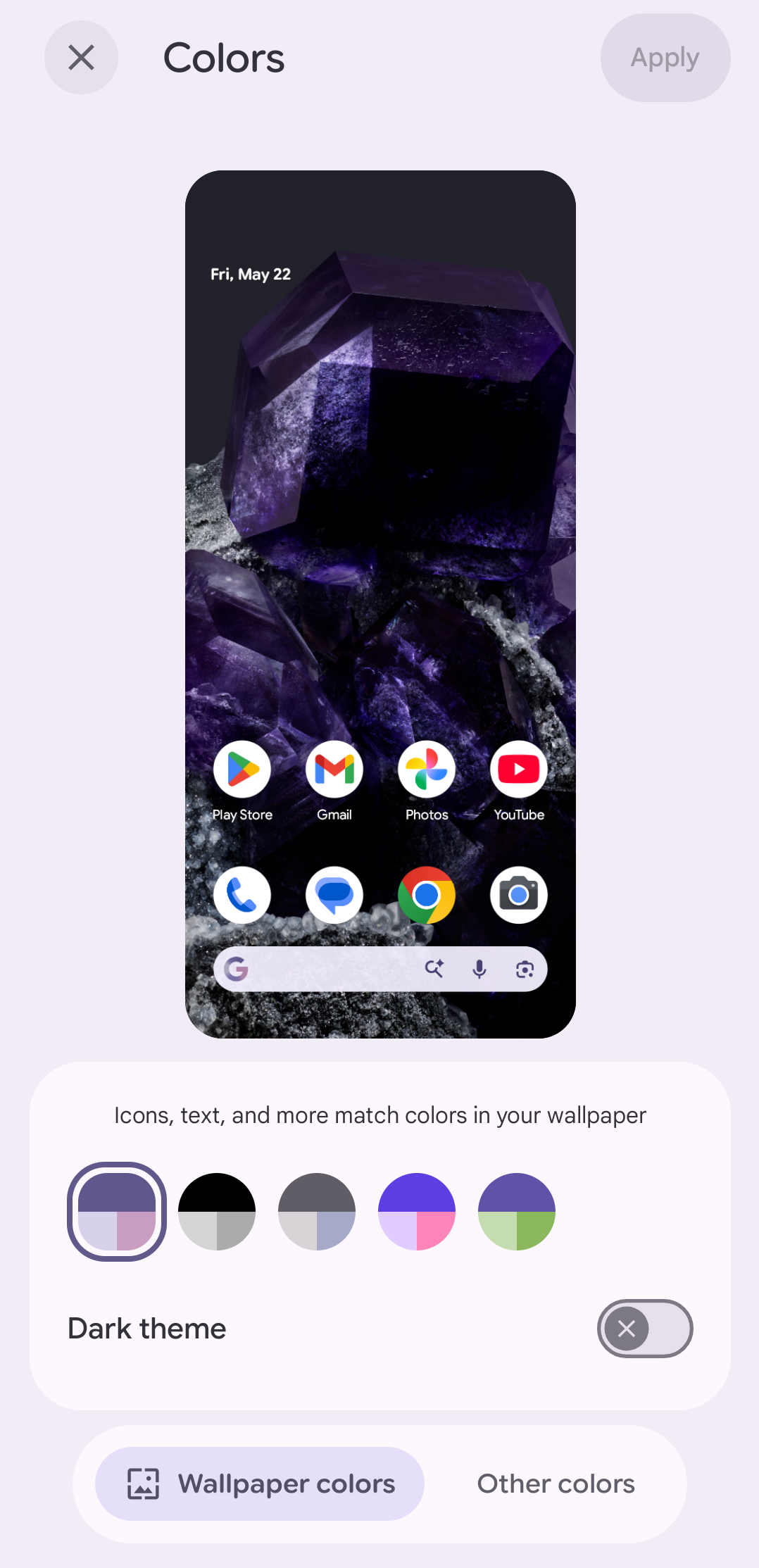
For information on changing your theme and color scheme, see the Android Help Center documentation.