YubiKey Bio Series Specifics
Using the YubiKey Bio Series
This guide, the YubiKey Technical Manual, provides:
- How the YubiKey Bio Works
- Descriptions of the different User Experiences with the various protocols
- Full instructions for enrolling fingerprints using platform support:
- Descriptions of the methods by which the protocols are supported, in:
- A brief explanation of the role the Yubico Authenticator plays in managing the YubiKey Bio.
To simply add a PIN and fingerprint to your YubiKey Bio Series, without a lot of details, see Yubico’s setup page, scroll down the page to the YubiKey Bio note and click the enroll your fingerprint link. Be sure to add a PIN before you add your fingerprints.
Usage Notes
The YubiKey Bio implements biometrics as outlined in the CTAP 2.1 specification. The best user experiences are provided by the YubiKey Bio with client applications and browsers that also implement CTAP 2.1. Applications and browsers that implement CTAP 1 or CTAP 2.0 also work with the YubiKey Bio. However, the UI on client devices is not as intuitive and there might be some limitations.
Physical Attributes
For physical attributes that apply to all YubiKeys, see Physical Attributes and the Yubico data sheet, What is a YubiKey? Product specification.
Sensors
The YubiKey Bio recognizes two interactions, one a touch, and the other a fingerprint. Its recognition of the fingerprint - or lack thereof - is communicated through the LEDs. See LED Behavior.
On the YubiKey Bio, the silver-colored bezel encircling the fingerprint sensor provides the grounding plane required to read the fingerprint. Touch types:
| Biometric: | When prompted to have the YubiKey Bio read your fingerprint from the fingerprint sensor, be sure to touch at least a tiny part of the ring. If you use your little finger to touch only the center of the fingerprint sensor, the key does not read the fingerprint. |
|---|---|
| Plain: | When prompted to touch the YubiKey Bio but not explicitly asked for the fingerprint, touch both the bezel and the fingerprint sensor, even though the fingerprint is not read. |
Fingerprint Tips provides detailed instructions on using the fingerprint sensor.
LEDs
The YubiKey Bio has a green LED and an amber LED to provide direct feedback. It flashes when the key is ready for interaction or is communicating something about the interaction. LED Behavior provides detailed descriptions.
USB Connector
The YubiKey Bio Series are USB 2.0 devices.
Note
Developers: The USB PID and iProduct string are 0x0402 and YubiKey FIDO respectively. See YubiKey USB ID Values.
Protocols Supported
FIDO Protocols
All keys in the YubiKey Bio Series support WebAuthn sites and applications that support the FIDO2 and FIDO U2F protocols. This includes the YubiKey Bio.
- FIDO2 (WebAuthn) – See YubiKey Bio and FIDO2
- FIDO U2F – See YubiKey Bio and FIDO U2F
Each application can be enabled and disabled independently. However, even though the firmware applications are separate from one another, they both share the same PIN and FIDO reset capability, which is to say that a FIDO reset resets both applications. To manage these applications, see Tools.
PIV Protocol
The YubiKey Bio Multi-protocol Edition supports the PIV protocol and works with sites and applications that support PIV/smart card interfaces. See YubiKey Bio and PIV.
Requirements: Platform and Browser Compatibility
Desktop
The YubiKey Bio Series works with the latest versions of most browsers and desktop operating systems. Currently, the best experience can be had on macOS, Chrome OS, and Linux, running up-to-date Chromium-based browsers.
On Windows 10, browsers do not tell you when the YubiKey has failed to match the fingerprint. To identify a failed authentication, check the YubiKey. If its LED is blinking amber, the biometric authentication attempt failed. This is not a problem on Windows 11.
Browsers such as Firefox and Safari have limited CTAP 2.1 implementation. These browsers typically prompt to enter the PIN even when the YubiKey is not in biometrics blocked state.
Mobile
- The YubiKey Bio does not have NFC capabilities.
- The YubiKey Bio can be used with mobile, but it is reliant on mobile operating system support as well as on browser support for the FIDO protocols. For more information, please refer to the relevant manufacturer’s web sites for your mobile device.
- When the YubiKey Bio in
biometrics blockedstate and requires the PIN, you might need to resort to a computer (as opposed to a mobile device) to unblock biometrics (see: Unblocking and Resetting the YubiKey Bio).
YubiKey Bio and FIDO2
FIDO2 / WebAuthn builds upon FIDO U2F, and is the standard that enables the replacing password-based authentication with the more secure public key cryptography. See WebAuthn Introduction and Client to Authenticator Protocol (CTAP) 2.1.
The YubiKey Bio Series - FIDO Edition and the Multi-protocol Edition support all FIDO2 scenarios supported by the YubiKey 5 Series and the Security Key Series. They can be used in both passwordless and second factor authentication scenarios. In both scenarios the fingerprint is used in lieu of the PIN, the way biometrics are used on a smartphone. There are some scenarios in which the PIN is required; for example, when enrolling or otherwise managing fingerprints, just as it is on a smartphone. The only opportunity to input the PIN is after 3 unsuccessful attempts at matching a fingerprint with an enrolled fingerprint.
Fingerprint Authentication
When biometrics is not blocked on the YubiKey Bio, the user has three opportunities to present a valid fingerprint by touching the fingerprint sensor. The platform - for example, the browser or desktop client - notifies the user if the fingerprint was recognized, that is, the attempt was successful. If unsuccessful, the YubiKey Bio’s amber LED blinks 3 times.
After three unsuccessful fingerprint attempts the platform prompts for PIN entry. For more information on the FIDO2 PIN see FIDO2 PIN.
Discoverable Credentials
Like FIDO U2F, the FIDO2 standard (see WebAuthn Introduction) offers the same high level of security, as it is based on public key cryptography. In addition to providing phishing-resistant two-factor authentication, the FIDO2 application on the YubiKey allows for the storage of discoverable credentials. (Fingerprint templates are not discoverable credentials.) Keys in the YubiKey Bio Series can hold up to 25 discoverable credentials (firmware 5.5 and 5.6) or 100 discoverable credentials (firmware 5.7 and later). To manage them, see Credential Management.
FIDO2 Credentials
The discoverable credentials can be used for passwordless authentication, or they can be used for two-factor authentication. In both scenarios the credentials can be protected by the FIDO2 PIN and in the case of a YubiKey Bio, biometrics can be used in lieu of the PIN provided that fingerprints have been enrolled and that the key is not in biometrics blocked state.
Credential Management
If you decide to discontinue using a site or service, you can delete its discoverable credential. This frees up space on the YubiKey Bio, which can contain up to 25 discoverable credentials (firmware 5.5 and 5.6) or 100 discoverable credentials (firmware 5.7 and later).
To view the discoverable credentials on your YubiKey and delete them selectively, use the Yubico Authenticator for Desktop version 5.1.0 and above.
For more information on credentials in general, and in particular on managing them, see YubiKey 5.2 enhancements to FIDO 2 support.
For more developer-oriented information on this, see Discoverable Credentials / Resident Keys on Yubico’s developer site.
FIDO2 PIN
The FIDO2 PIN is necessary for:
- Enrolling fingerprints
- Managing enrolled fingerprints
- Fallback after failure to match fingerprint with template.
- There is no PIN set by default
- Once a FIDO2 PIN is set, it can be changed but it cannot be removed unless you reset the FIDO2 application.
- If the FIDO2 PIN is entered incorrectly three times in a row, the key needs to be reinserted before it can accept additional PIN entry attempts. Reinserting “reboots” the key.
- To find out how many retries you have left, use the Yubico Authenticator tool or the ykman tool.
- If the PIN is entered incorrectly eight times in a row (3+3+2), the FIDO2 application locks, and FIDO2 authentication is not possible.
- To restore the FIDO2 functionality, reset the FIDO2 application.
For YubiKey Bio Series - FIDO Edition keys, the FIDO2 PIN must be between 4 and 63 characters in length. For YubiKey Bio Series - Multi-protocol Edition keys, PIN length requirements depend on firmware version and YubiKey application status:
YubiKey Bio Series - Multi-protocol Edition
PIN Length Requirements
|
||
|---|---|---|
| Firmware version: | PIV application enabled: | PIV application disabled: |
| Prior to 5.7.4 | 6-8 characters | 4-63 characters |
| 5.7.4 and later | 6-8 characters | 6-63 characters |
For more information, see Understanding YubiKey PINS and Device PIN.
Note
Resetting the FIDO2 application also resets the U2F application. No site you have registered the YubiKey with using U2F will work until the YubiKey is re-registered with that site.
User Verification
The YubiKey Bio implements always-on user verification, or alwaysUV.
The user verification requirement asks for proof that the user logging in is the same user as the one who set the PIN, enrolled fingerprints, and registered the key with the app or service (Relying Party, or RP). For more information about user verification, see User Presence vs User Verification.
When userVerification is discouraged, the user experience is not optimal unless the platform has implemented CTAP 2.1. See Multifactor Authentication (MFA).
Supported Extensions
The YubiKey Bio supports the AppID extension (appid) as defined by the W3C Web Authentication API specification. This extension allows U2F credentials registered using the legacy FIDO JavaScript APIs to be used with WebAuthn. In practice, that means that if you register a YubiKey Bio on a website when it used U2F and that website later upgrades to FIDO2, previously registered U2F credentials continue to work.
Note
Developers: For AAGUID values, see YubiKey hardware FIDO2 AAGUIDs.
YubiKey Bio and FIDO U2F
The FIDO U2F protocol does not require any special drivers or configuration to use, just a compatible web browser. The U2F application on the YubiKey can be associated with an unlimited number of WebAuthn sites supporting FIDO U2F authentication.
FIDO U2F on the YubiKey Bio Series requires that the touch be a successful biometric match with an already enrolled fingerprint. This is different from FIDO U2F on other YubiKeys.
PIN + U2F
As the concept of PIN does not exist in FIDO U2F, after three successive failures to match the fingerprint, the key goes into the “biometrics blocked” state without first prompting for the PIN. An amber LED blinks slowly and continuously to indicate this state. Biometrics can be unblocked with a FIDO2 operation using the PIN (that is, authentication). See Troubleshooting and Tools for full instructions and more information.
Note
Developers: With regard to computer login tools that use FIDO U2F for second-factor authentication, some software might use a YubiKey and FIDO U2F as a second factor. Since FIDO U2F has no concept of fallback to PIN, the YubiKey Bio is not likely to be a good choice for this use case. For more information about software that falls into this category, visit Yubico Support site and look for articles about the YubiKey Bio.
FIDO U2F Superseded by FIDO2
FIDO2 is the umbrella term used to describe an amalgamation of two separate sets of specifications: WebAuthn and the Client-to-Authenticator Protocol, CTAP (currently version 2.1, and often referred to as CTAP2.1). The WebAuthn component provides a narrow scope of flexibility for developers on the service layer because it encompasses the logical interactions across a network. CTAP2.1, however, provides a much more open set of standards for the interaction between a security device and the user.
CTAP2.1 is also where biometrics such as fingerprint enrollment, management, and use were first defined. To create a cohesive user experience, adherence to this specification is required from:
- Authenticators such as the YubiKey Bio
- Clients such as the Chrome or Edge browsers
- Platforms such as Windows and macOS.
See User Experiences.
Supported Extensions
The YubiKey Bio supports the AppID extension (appid) as defined by the W3C Web Authentication API specification. This extension allows U2F credentials registered using the legacy FIDO JavaScript APIs to be used with WebAuthn. In practice, that means that if you register a YubiKey Bio on a website when it used U2F and that website later upgrades to FIDO2, previously registered U2F credentials continue to work.
Note
Developers: For AAGUID values, see YubiKey hardware FIDO2 AAGUIDs.
YubiKey Bio and PIV
The YubiKey Bio Multi-protocol Edition supports PIV in addition to FIDO U2F and FIDO2. The PIV application works the same way as the PIV application on a YubiKey 5 Series, see Smart Card - PIV Compatible Specifics, with the differences set out below.
Yubico Minidriver and YubiKey Bio
With the PIV protocol on some operating systems and browsers, using the biometric (fingerprint) option on YubiKey Bio requires client software or middleware. To access the PIV application on the YubiKey Bio Multi-protocol Edition, if fingerprint authentication for cryptographic operations does not work, enter the YubiKey PIN.
For Windows operating systems, Yubico provides biometric supporting middleware, the YubiKey Smart Card Minidriver. See:
Device PIN
On the YubiKey Bio Multi-protocol Edition, the PIN is shared between the PIV and FIDO2 applets. PIN length requirements depend on firmware version and YubiKey application status.
How the YubiKey Bio Works
For the full technical explanation of this from a developer perspective over FIDO, start with the Yubico’s WebAuthn Developer Guide.
Note
In the following, the term credentials is referenced repeatedly. There are different kinds of credentials. To pursue all the distinctions, consult the FIDO2 page on the Fido Alliance web site.
Enrollment
Before you can start using the YubiKey Bio with services and applications, you need to first set a FIDO2 PIN. Once a PIN is set, biometric functionality (recommended but not required for use with passkeys) can be enabled by enrolling at least one fingerprint. The YubiKey Bio needs to have the PIN as a fallback in case it cannot recognize your fingerprint.
Although there are two FIDO applications on the YubiKey Bio, namely FIDO2 and U2F, it is the FIDO2 PIN that is required as fallback for both. The PIN is not associated with any site. When the fingerprint does not work and the key falls back to the PIN, it is the key that needs the PIN for authentication to all sites, including U2F sites (even though U2F has no concept of PIN). With fallback to PIN, it is easy if you are authenticating to a WebAuthn/FIDO2 site, because the browser/client app can prompt for the PIN. Otherwise you must unblock biometrics by using any of the following:
- The YubiKey Bio start page
- The Yubico Authenticator
- The ykman Releases page.
The “working” of the fingerprint is described in the following. For information on how and why the fingerprint might not “work”, see Fingerprint Tips.
Risk Mitigation
To mitigate the risk of being shut out of your account or service, it is always advised to register a second YubiKey. For more information, see https://www.yubico.com/products/spare/.
Fingerprints and Templates
An enrolled fingerprint is stored on the YubiKey Bio not as an image, but in the form of a template, similar to a one-way hash. It is not possible to recreate an image of a fingerprint from a template, nor does the template ever leave the YubiKey.
After enrollment, each time you apply your fingertip to the fingerprint sensor, the key tries to match the fingerprint against the template stored on the key.
Parties Involved in Registration and Authentication
Closely related to Requirements: Platform and Browser Compatibility, registering and authenticating with a YubiKey Bio to an app or a service that supports WebAuthn or U2F involves several parties:
- The user (with their fingerprints and knowledge of the PIN)
- The YubiKey Bio
- The FIDO2 application or the U2F application on the YubiKey Bio
- The FIDO2/WebAuthn or U2F-supporting browser or client
- The service or app
All these work together. For example, if your YubiKey does not work as expected, you might be using a browser or an app that does not support FIDO2 security keys.
- YubiKey Bio Multi-protocol Edition
- When using the YubiKey Bio Multi-protocol Edition the client needs to support the PIV protocol. For Windows, the client can use the Yubico Minidriver installed (version 4.6.0 or later). See YubiKey Minidriver User Guide.
Registration
Registering a YubiKey Bio with a site, service, or application is the same as for other YubiKeys.
Authentication
Depending on the protocol supported by the site or service, there are several possible user experiences (scenarios). These are described below.
User Experiences
The user experience with the YubiKey Bio is dictated by a combination of the site or service that the user is authenticating against and the browser or client. Different service and client combinations yield different results. The user experiences are determined by the different options for developers implementing FIDO2 with the WebAuthn and CTAP protocols. Please note that the following descriptions of user scenarios are only high-level overviews. The experiences change every time the various forms of support change.
Passwordless
This scenario provides the best user experience by enabling a passwordless flow backed by strong authentication. To achieve it, use discoverable credentials. When the user authenticates to the site or service:
- The client or browser prompts the user to insert the YubiKey.
- The client makes a request to the YubiKey to see if any credentials on the key have been registered for use with this site or service.
- If the correct credentials are found, the client or browser prompts the user to apply their fingertip to the YubiKey Bio’s sensor.
- If the fingerprint match is successful, the appropriate response is sent to the client or browser to complete authentication.
- If the fingerprint match is unsuccessful three times in a row, the client or the browser prompts instead for the PIN. After correctly inputting the PIN, the user is then prompted to touch the key to prove presence (as opposed to verifying identity). In this situation, the YubiKey Bio behaves like any other key in the YubiKey 5 Series.
Multifactor Authentication (MFA)
When a user authenticates to the site or service:
- The client or browser prompts the user to insert their username and password. These are what the server uses to identify the user and determine whether they are registered.
- If username and password match the server’s records, the site or service prompts the user for an additional form of identification to prove their identity. This is called multifactor authentication.
- The user proves their identity to the key either by providing a fingerprint that the key can match to its template, or by entering the PIN.
- If the fingerprint match is successful, the appropriate response is sent to the client or browser to complete authentication.
- If the key is unsuccessful at matching fingerprint to template three times in a row, the YubiKey Bio goes into the biometrics blocked state, signaling this by slow constant flashing of the amber LED. The client or the browser prompts instead for the PIN and for the user to touch the key (checking for user presence). In this situation, the YubiKey Bio behaves like any other key in the YubiKey 5 Series.
U2F
This scenario only works well if the fingerprint match is successful and the user flow is the same as the multifactor flow. If the fingerprint match is unsuccessful, any prompts from the site or service are unlikely to be clear and unambiguous, because U2F has no concept of PIN.
If the fingerprint match is unsuccessful, you must unblock biometrics by using any of the following:
- The YubiKey set up page
- The Yubico Authenticator tool
- The ykman tool.
Understanding YubiKey Bio Enrollment
Note
A YubiKey is a FIDO2 hardware authenticator. Both Windows and Mac have built-in FIDO2 authenticators - that is, software authenticators that in this case are also platform authenticators. The prompts in both Windows and Mac might assume you are using their own authenticators. Therefore it is quite easy to register their authenticators with a site or service by mistake, without realizing that you are not registering your YubiKey. Read the prompts carefully to avoid this. And remember that the PIN is associated with the authenticator, not the site or service.
Although there are two FIDO applications on the YubiKey Bio, namely FIDO2 and U2F, it is the FIDO2 PIN that is required as fallback for both. The PIN is not associated with any site. When the fingerprint does not work and the key falls back to the PIN, it is the key that needs the PIN for authentication to all sites, including U2F sites (even though U2F has no concept of PIN). With fallback to PIN, it is easy if you are authenticating to a WebAuthn/FIDO2 site, because the browser/client app can prompt for the PIN. Otherwise you must unblock biometrics by using any of the following:
- The YubiKey Bio start page
- The Yubico Authenticator
- The ykman Releases page.
Adding a PIN to YubiKey Bio
Before you add fingerprints to your YubiKey Bio, it is highly recommended that you create a PIN for the YubiKey as a backup to the fingerprint authentication. See Support article, Understanding YubiKey PINs: The Basics.
The wizards to add security keys provided in the Windows and Chrome (for macOS, Linux, and Chrome OS devices) include an option to add, change, or reset the YubiKey PIN.
The Yubico Authenticator also provides a method for adding PINs to your YubiKey Bio. To use Yubico Authenticator for setting YubiKey PINs, see:
Enrolling Fingerprints on Chrome
Set a PIN and enroll the first fingerprint using the Chrome browser on a macOS, Linux or Chrome OS device. To enroll one or more fingerprints use the Chrome settings as described in Setting Up Your YubiKey Bio on Chrome.
For information on the YubiKey Bio sensor and tips on working with fingerprints see Fingerprint Tips. For detailed information on FIDO2 PINs and their requirements, see Understanding YubiKey PINS.
Setting Up Your YubiKey Bio on Chrome
See the link and video Set up your YubiKey > Enroll your Fingerprint > Fingerprint Enrollment > macOS / Linux / Chrome OS.
Access security settings.
From a Chrome browser, click the three vertical dots in the upper right of the browser window and select Settings > Privacy and Security > Security. Scroll to select Manage security keys.
Optionally, paste
chrome://settings/securityKeysinto the Chrome address field.Create PIN on your YubiKey.
If your YubiKey does not have a PIN, set it now.
- Click Create a PIN.
- Insert and touch the YubiKey BIO.
- Enter and confirm a PIN. Then click Save.
- At the Your PIN was created message, click OK.
Enroll your fingerprint.
In the the Manage wizard click Fingerprints and follow the prompts.
- Insert YubiKey Bio.
- Enter the security key PIN. Then click Continue.
- Click Add to add fingerprints.
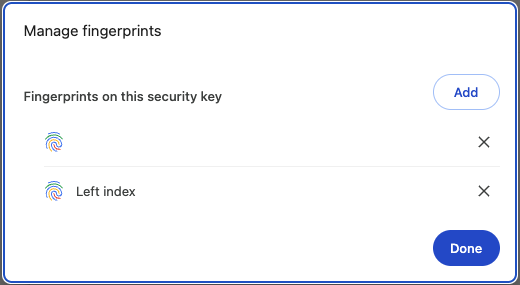
Touch the fingerprint sensor on the YubiKey Bio until you see Your fingerprint was captured. Then click Continue.
Touch the fingerprint sensor and the bezel. You are prompted to touch the sensor several times. Change the angle of finger to sensor slightly each time. If the fingerprint you enroll is smaller than the sensor, apply some pressure to help ensure a good image capture.
Enter a name for the fingerprint. For example, Right Thumb. Click Done.
Enroll additional fingerprints.
Repeat this Step 3 to enroll different fingers from either hand. The YubiKey Bio holds a total number of 5 enrolled fingerprints.
If you are fingerprint management panel, start with Step 3c, click Add.
Chrome on macOS, Linux, and Chrome OS: Capturing the Fingerprint
The YubiKey Bio now has a template for that fingerprint.
Enrolling Fingerprints on Windows
Set a PIN and enroll fingerprints on a YubiKey Bio using the Sign-in options on a Windows 10 or Windows 11 system.
Note
To get to the popup (prompt) for the YubiKey, you might need to cancel out of the pop-up for the built-in authenticator.
For information on the YubiKey Bio’s sensor and tips on working with fingerprints see Fingerprint Tips. For detailed information on FIDO2 PINs and their requirements, see Understanding YubiKey PINS.
Setting Up Your YubiKey Bio on Windows
See the link and video Set up your YubiKey > Enroll your Fingerprint > Fingerprint Enrollment > Windows 10 and Windows 11.
Access security settings.
From Windows, open Settings > Accounts > Sign-in Options > Security Key. Expand Security Key field, then click Manage.
Insert your YubiKey Bio into your device USB port. Then tap your YubiKey Bio.
Create PIN on your YubiKey.
If your YubiKey does not have a PIN, set it now. Click Add Security Key PIN. Enter a PIN you select in both fields and click OK.
Enroll your fingerprint. In the the Windows Setup wizard:
Click Security Key Fingerprint Set up and follow the prompts.
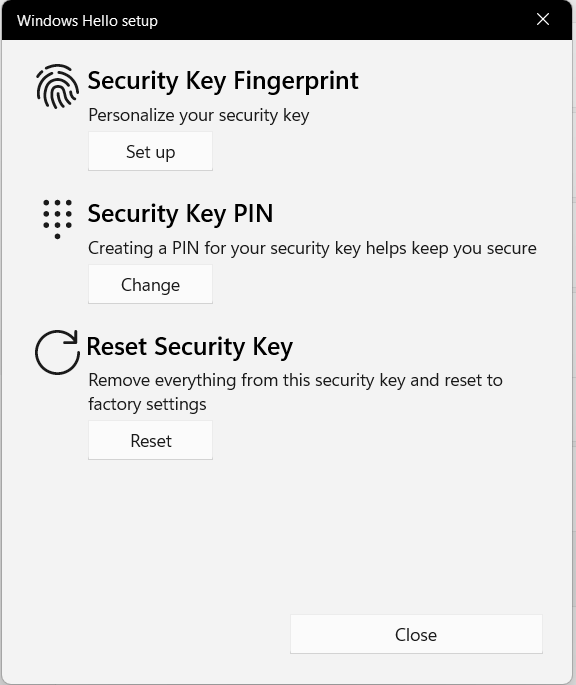
Enter the security key PIN. Then click OK.
Touch the fingerprint sensor.
Touch the fingerprint sensor and the bezel. You are prompted to touch the sensor several times. Change the angle of finger to sensor slightly each time. If the fingerprint you enroll is smaller than the sensor, apply some pressure to help ensure a good image capture.
Continue lifting and re-applying the same finger until you see the All set! message. Then click OK.
Enroll additional fingerprints.
Repeat this Step 4 to enroll different fingers from either hand. The YubiKey Bio holds a total number of 5 enrolled fingerprints.
The YubiKey Bio now has a template for that fingerprint.
Unblocking and Resetting the YubiKey Bio
The main cause for the biometric function to block is failure to match the fingerprint three times in a row. If the YubiKey Bio locks because the biometric function was blocked, you can just unblock it instead of resetting it: see Troubleshooting and Tools.
Locking/Blocking
| Fingerprint: | If the YubiKey cannot match fingerprint to template three times in a row, fingerprint recognition is blocked. The YubiKey Bio falls back to PIN. |
|---|---|
| PIN: | If you enter the wrong PIN eight times in a row, the YubiKey FIDO2 application becomes locked, which means it cannot communicate with you or with any site or service. It indicates the blocked state by flashing its amber LED slowly and continuously. In order to restore this functionality, reset the FIDO2 application. For more details, see FIDO2 PIN. |
| Unblock: | To unblock the YubiKey Bio’s biometric function (its ability to read fingerprints) by using any of the following:
|
Resetting
Resetting your YubiKey Bio deletes all credentials, the PIN, and stored fingerprint templates.
Resetting the key is not the same as unblocking it. Resetting the FIDO2 and FIDO U2F applications returns the key to the factory default state. In this default state, the key has neither fingerprints nor PIN nor credentials. After resetting it, you must therefore enroll your fingerprints again and register your key again to your apps and services. See the relevant Enrolling chapter, either Enrolling Fingerprints on Chrome or Enrolling Fingerprints on Windows.
Note
The YubiKey Bio Multi-protocol Edition behaves differently from other YubiKey Bios. To ensure that devices and applications do not unintentionally destroy credentials on that key, if both PIV and FIDO are enabled, the native reset commands for these protocols will be disabled and replaced with a single new reset command for both applications.
Therefore, if you try to run the individual protocol resets on a YubiKey Bio Multi-protocol Edition, you will get an error message. Conversely, if you try to run the reset command for the YubiKey Bio Multi-protocol Edition on a YubiKey Bio that is not the Multi-protocol Edition, you will also get an error message.
Because the PIN and fingerprint templates have been unified, the individual PIV and FIDO2 protocols can only be enabled or disabled on a freshly reset device. It is not possible to enable or disable protocols after a PIN is set.
Resetting Your YubiKey Bio with the Yubico Authenticator and Other Tools
With a YubiKey Bio that is not the Multi-protocol Edition, resetting means resetting the FIDO application. You can perform a FIDO reset using any of the following:
- The YubiKey set up page
- The Yubico Authenticator tool
- The ykman tool
- Windows Sign-in options
- The Chrome browser settings.
YubiKey Bio Multi-protocol Edition
To reset the YubiKey Bio Multi-protocol Edition please use the Yubico Authenticator tool.
Managing Credentials to Sites or Services
If you decide to discontinue using a site or service, you can delete its discoverable credential. This frees up space on the YubiKey Bio, which can contain up to 25 discoverable credentials (firmware 5.5 and 5.6) or 100 discoverable credentials (firmware 5.7 and later).
To view the discoverable credentials on your YubiKey and delete them selectively, use the Yubico Authenticator for Desktop version 5.1.0 and above.
For more information on credentials in general, and in particular on managing them, see YubiKey 5.2 enhancements to FIDO 2 support.
For more developer-oriented information on this, see Discoverable Credentials / Resident Keys on Yubico’s developer site.
Fingerprint Tips
LED Behavior
The YubiKey Bio is not in a permanent state of readiness. It is therefore essential to wait for the key to signal its readiness by flashing the green LED before you touch it.
- If the key reacts to your touch by flashing or blinking the green LED, you used the right touch.
- If the amber LED flashes three times in quick succession, the attempt to match your fingerprint with the template was not successful.
- If the amber LED flashes slowly and continuously, it is in the biometrics blocked state.
- If the key does not react to your touch, you might not have touched both the bezel and the sensor. When you apply your fingerprint, always make sure you are touching the bezel at the same time. See Tips for the Touch below.
Fingerprint Enrollment Progress Indicators
The progress of reading of your fingerprint is displayed on-screen. The way it is shown depends on the client platform and browser. It is generally not under the control of the site or the service. The screenshots below show enrollment using platform support:
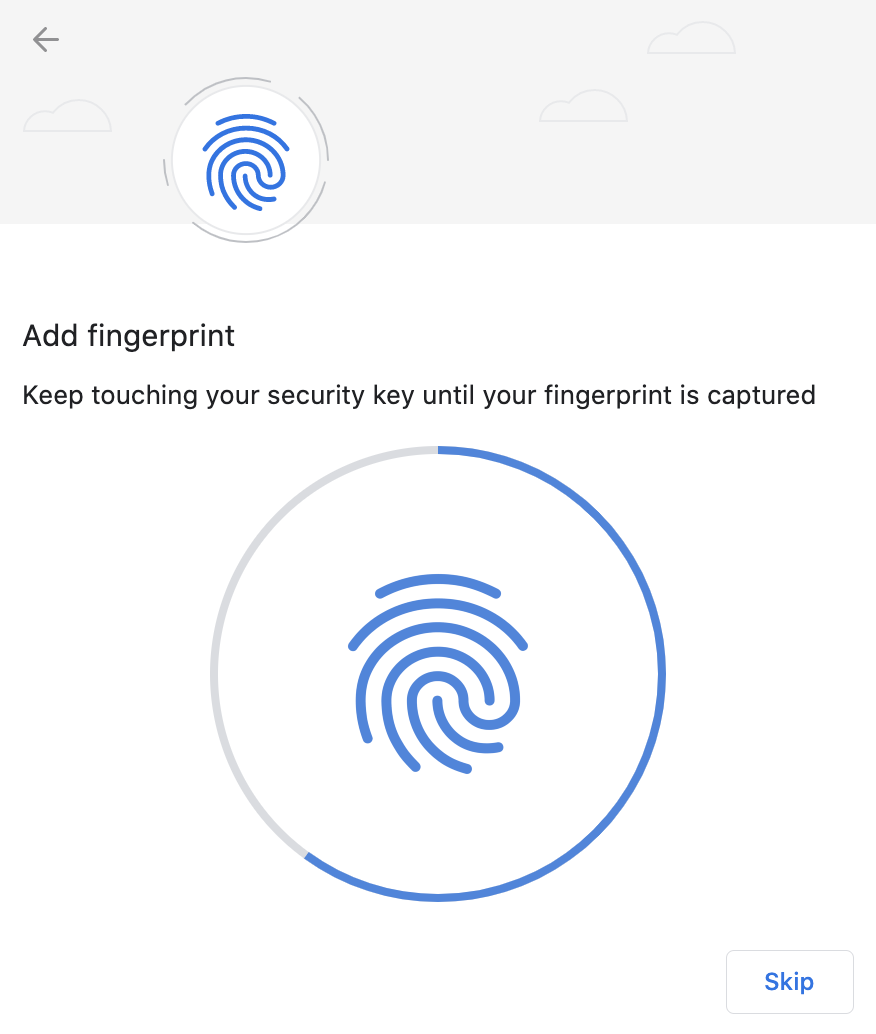
Chrome on macOS, Linux, and Chrome OS: Capturing the Fingerprint
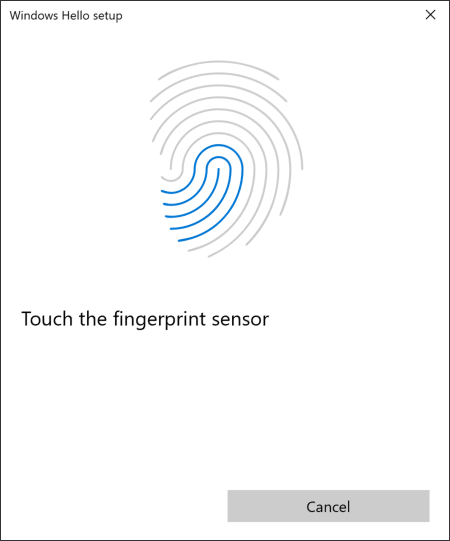
Windows: Capturing the Fingerprint
Fingerprint Orientation
The YubiKey Bio supports 360 degree fingerprint reading, meaning that a fingerprint can be read from any angle once successfully enrolled.
Tips for the Touch
Because the fingerprint can be negatively affected by environmental conditions such as heat, cold, injury, etc., it is not always easy for the YubiKey Bio to interact with it. The following tips are helpful.
The YubiKey Bio recognizes two interactions, one a touch, and the other a fingerprint. Its recognition of the fingerprint - or lack thereof - is communicated through the LEDs. See LED Behavior.
On the YubiKey Bio, the silver-colored bezel encircling the fingerprint sensor provides the grounding plane required to read the fingerprint. Touch types:
| Biometric: | When prompted to have the YubiKey Bio read your fingerprint from the fingerprint sensor, be sure to touch at least a tiny part of the ring. If you use your little finger to touch only the center of the fingerprint sensor, the key does not read the fingerprint. |
|---|---|
| Plain: | When prompted to touch the YubiKey Bio but not explicitly asked for the fingerprint, touch both the bezel and the fingerprint sensor, even though the fingerprint is not read. |
| Fingerprint: | For enrolling, when we say fingertip, we actually mean the pad on the tip of the finger where the whorls of the fingerprint are. The fingerprint could equally well be a thumbprint or a toeprint; the YubiKey Bio makes no distinction between fingers, thumbs, and toes. |
|---|---|
| Print quality: | Dry or scarred skin can impede the key’s ability to perform a successful fingerprint match. If your hands are dry, use moisturizer or water to enable conduction. Do not apply wet fingertips. |
| Repeat reading: | Enrolling your fingerprint requires pressing your fingertip against sensor (and bezel) several times, usually 5 to 8 times. If an attempt to capture is unsuccessful the YubiKey Bio needs you to repeat enrolling. |
| Vary the angle: | When enrolling a new fingerprint, angle your finger so that different parts of the fingerprint come in contact with the sensor and bezel with each capture. This enables the YubiKey Bio sensor to collect a larger area of your finger. |
| Temperature: | If the fingertip is too cold, the YubiKey Bio might not be able to read the fingerprint. If your hands are cold, rub them together to get the circulation going and warm them up. |
| Press firmly: | Press the YubiKey Bio sensor and bezel with your fingertip gently but firmly and hold for a second or so. If you are using an adapter, it may be necessary to hold onto the adapter to prevent it from bending and interrupting the connection to the YubiKey. |
| Stable key: | If the YubiKey Bio seems to wobble in the USB port, use your other hand to hold it steady in the port while you are applying your fingertip. |
| Stable dongle: | If you are using a dongle as an adapter to your device’s USB port, ensure the YubiKey Bio is stable enough for you to apply sufficient pressure with your fingertip. |
| Check the LEDs: | When you start enrolling a fingerprint, the green LED on your YubiKey Bio starts to flash. Start enrolling the fingerprint before the green LED on the YubiKey Bio stops flashing. The amber LED might flash slowly, indicating that no fingerprint is enrolled or that biometrics is in the blocked state. |
| Clean sensor: | If there is dust or oil residue on the YubiKey Bio sensor and bezel, clean it. See Care and Cleaning. |
| Change ports: | Sometimes the USB port does not work well or the YubiKey Bio is loose in the port. Insert the YubiKey Bio in a different port on your device. |
Troubleshooting and Tools
Troubleshooting
The primary source for troubleshooting tips is the FAQ on the YubiKey set up page.
| Fingerprint: | If the YubiKey cannot match fingerprint to template three times in a row, fingerprint recognition is blocked. The YubiKey Bio falls back to PIN. |
|---|---|
| PIN: | If you enter the wrong PIN eight times in a row, the YubiKey FIDO2 application becomes locked, which means it cannot communicate with you or with any site or service. It indicates the blocked state by flashing its amber LED slowly and continuously. In order to restore this functionality, reset the FIDO2 application. For more details, see FIDO2 PIN. |
| Unblock: | To unblock the YubiKey Bio’s biometric function (its ability to read fingerprints) by using any of the following:
|
Unblocking/Unlocking
| Fingerprint: | If the YubiKey cannot match fingerprint to template three times in a row, fingerprint recognition is blocked. The YubiKey Bio falls back to PIN. |
|---|---|
| PIN: | If you enter the wrong PIN eight times in a row, the YubiKey FIDO2 application becomes locked, which means it cannot communicate with you or with any site or service. It indicates the blocked state by flashing its amber LED slowly and continuously. In order to restore this functionality, reset the FIDO2 application. For more details, see FIDO2 PIN. |
| Unblock: | To unblock the YubiKey Bio’s biometric function (its ability to read fingerprints) by using any of the following:
|
For resetting, see Resetting.
Other Issues
For any issues with a YubiKey Bio, refer to the Yubico Support Knowledge Base and search for your issue. If your issue is not listed in the Knowledge Base, or if you have any technical questions, you can Submit a request with Yubico Support.
Tools
Yubico Authenticator
The Yubico Authenticator tool can be used to manage the YubiKey Bio. It is open source and cross-platform, running on Windows, macOS, and Linux. Note that the iOS and Android versions of Yubico Authenticator cannot be used to manage the YubiKey Bio.