Getting Started
Welcome to YubiKey as a Service and the Customer Portal! This section guides you to supporting content for common tasks performed by different user categories working with the Customer Portal and integrations using the YubiKey as a Service API.
Logging in
To access the Customer Portal, your organization must first be set up, and your account must be activated through a first-time log in with a registered YubiKey as described in Activating User Accounts. The Customer Portal uses Passwordless Authentication, and using a YubiKey is the only authentication method to access the Customer Portal.
Organization Owners, accessing the Customer Portal for the first time, can log in using a one-time access code, and are given limited access to ship up to 10 YubiKeys. Other users must enroll a YubiKey to access the Customer Portal. See Onboarding.
To log in to the Customer Portal, do the following:
Have your YubiKey ready, go to https://portal.yubico.com/login, and click Login.
Click Sign in with Passkey.
Locate and select the passkey associated with the YubiKey registered with your Customer Portal account. Ensure to select the security key passkey option if your browser suggests other (synced) passkey options.
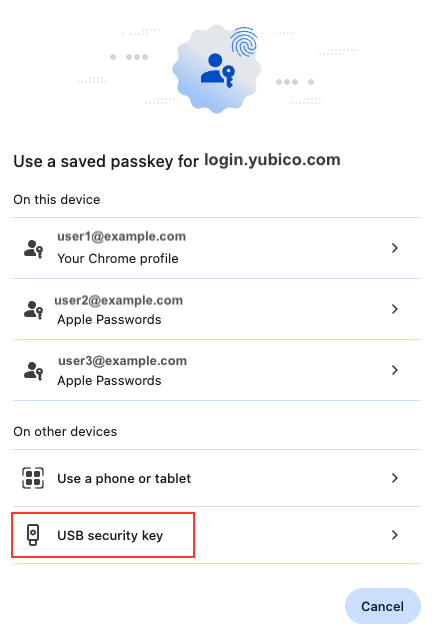
When prompted, tap your YubiKey and provide the PIN associated with the YubiKey.
You will be logged in and taken to the Home page for your organization from where you can start working with your Customer Portal tasks.
Note
As a security measure, your session will timeout after 1 hour when logged in to the Customer Portal. After 24 hours, you will be forced to log in and authenticate again.
Viewing Notifications
Notifications provide an overview of activities in the system, as well as important information regarding for example failed shipments requiring your interaction. Notifications are a good starting point when you first log in to the Customer Portal.
The Notifications (bell) icon in the top menu indicates the number of unread notifications if any.
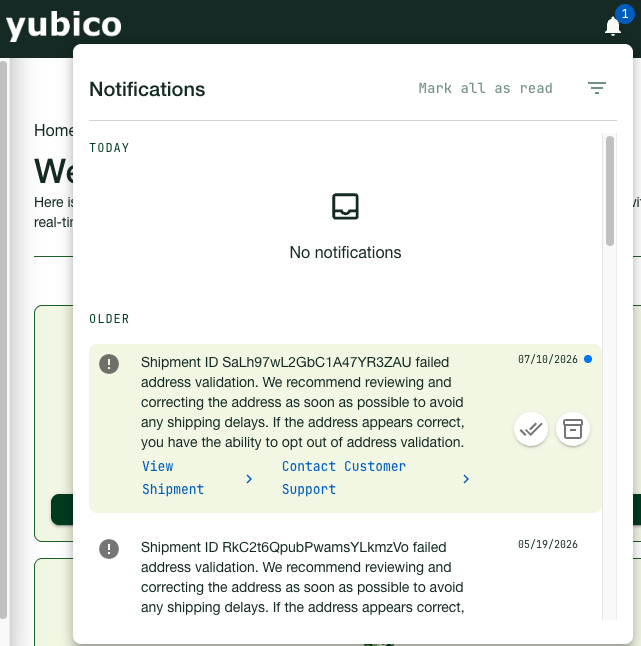
You can do the following when working with notifications:
- Click the Notifications icon to check the list of notifications to see if there are any activities that require user interaction, for example shipments with failed address validation.
- Click the unread notifications to read them and take action if needed. Notifications remain in the list after being read until they expire after 30 days.
- To filter notifications, click the Filter icon at the top right and select the desired option. You can for example filter notifications to only view unread ones.
- To keep desired notifications, click Archive for a notification to move it to the archive where it will be stored until deleted. Click Archived to view all archived notifications.
- Click Mark all as read to clear all unread indications. Notifications that have been read remain visible and you can see their record and take action at any time.
Note
Notification interactions are personalized. When you mark a notification as read, it will only be marked as read for you. Other Customer Portal users in your organization will still see the notification as unread until they mark the notification as read.
Working in the Customer Portal
Note
What you see in the Customer Portal depends on the services available to your organization, and your role and permissions in the system. You might not be able to access all features described here.
Customer
- Organization account owner with ORGANIZATION OWNER role
You are an account owner working with purchasing plans for your organization. You want to set up your organization’s account, order a first set of YubiKeys, add more Customer Portal users for your organization, and manage their permissions. As Organization Owner, you can also reset accounts if needed.
Understanding purchasing and delivery
Onboarding and first access to the Customer Portal
Managing Customer Portal settings and user access
- Organization IT administrator with ORGANIZATION ADMIN role
You manage deployment of YubiKeys for your organization. You want to see the inventory, understand how many keys are available, and ship keys to various parts of your organization. You want to check the status of shipments, and update shipment request details if needed.
Monitoring your inventory
Creating shipment requests
Managing shipments
- Organization auditor with ORGANIZATION AUDITOR role
You are an auditor for an organization and want to review data like purchase orders, shipments and permission settings. You also want to download information for reporting purposes.
Viewing data for an organization
Downloading information
Reseller
- User with RESELLER VIEW access
Resellers are organizations that sell Yubico products to end customers. As a reseller you want to see what was sold to your customers, monitor their inventories, and provide access for customers to view purchase orders.
Getting an overview
Viewing purchase orders
Managing view permissions
Distributor
- User with DISTRIBUTOR VIEW access
Distributors are organizations that sell Yubico products to associated resellers that in turn sell the products to end customers. As a distributor you want to see what was sold by your resellers, monitor customer inventories, and provide your resellers with access to view purchase orders.
Getting an overview
Viewing purchase orders
Managing view permissions
Integrator
- Developer with ORGANIZATION ADMIN role
You are a developer integrating the YubiKey as a Service API into a system on behalf of a customer organization. You want to understand how to get started with the YubiKey as a Service API, and how to use it for example to create shipment requests.
Getting started with the YubiKey as a Service API
Working with the YubiKey as a Service API
Integration examples