Channel Partners
The entity through which a purchase order (PO) is submitted is referred to as a channel partner. This can be Yubico itself (direct sale), or a reseller or distributor doing business with Yubico. The Reseller and Distributor views in the Customer Portal are intended for organizations acting as resellers and distributors, selling YubiKeys to their end customers.
Reseller and distributor organizations are added to the Customer Portal just like any other organization, and will be associated with purchase orders when these are created by Yubico. When these organizations are added as to POs as channel partners, their end customers can benefit from the YubiKey as a Service Delivery service to order shipment of YubiKeys through self-service.
The Reseller and Distributor roles provide access to the Customer Portal Reseller and Distributor views respectively. These views lets resellers and distributors see purchase orders for their associated end customers. The views are only visible to users with these roles. See Roles and Permissions.
Important
Customers can only see POs from indirect sales if their reseller has granted them PO view access. If a distributor is involved, this must first grant their associated resellers PO view access. When this is done, the reseller can provide PO view access for their associated customers. Distributor information is never displayed in customer views of purchase orders. Customers will always be able to see purchase orders from direct sales (through Yubico).
Reseller View
The Reseller view lets you as a reseller see what was sold to your customers, and lets you provide access for your customers to view inventory purchased through your organization.
Enabling Customer PO Views
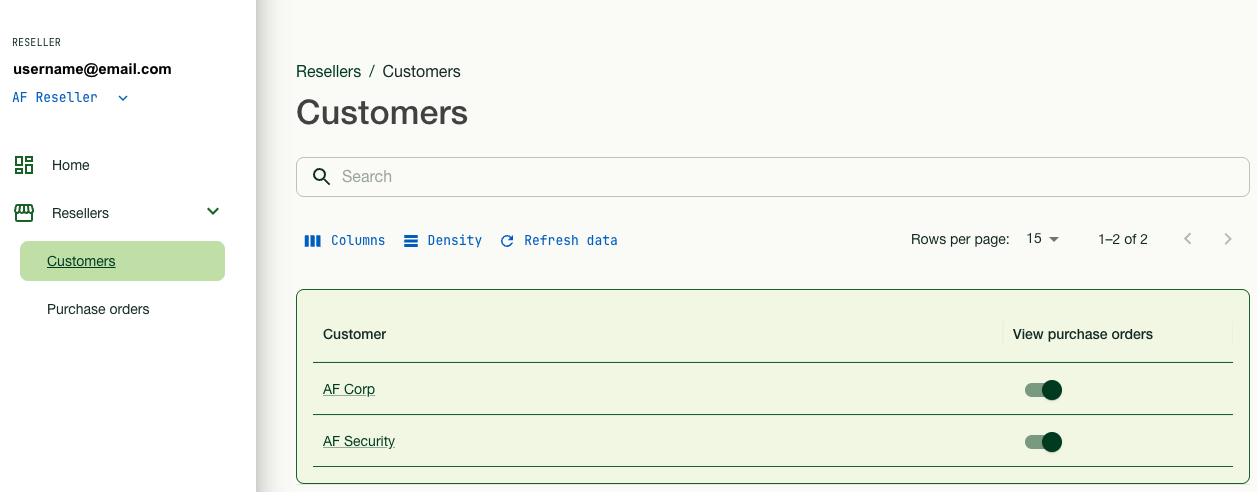
To allow your customers to view purchase order (PO) information, click Reseller > Customers in the left menu, and enable the View purchase orders toggle for the desired customer in the list.
Important
If you disable this access for a customer, this customer will not be able to see any inventory purchased from you. If a distributor is involved, the distributor must also first enable this setting for you as a reseller, in order for your end customer to see the purchase order information.
Viewing Purchase Orders
To view purchase order information, click Reseller > Purchase orders in the left menu. The Purchase orders page shows a list of purchase orders and associated customers, and distributors if any.
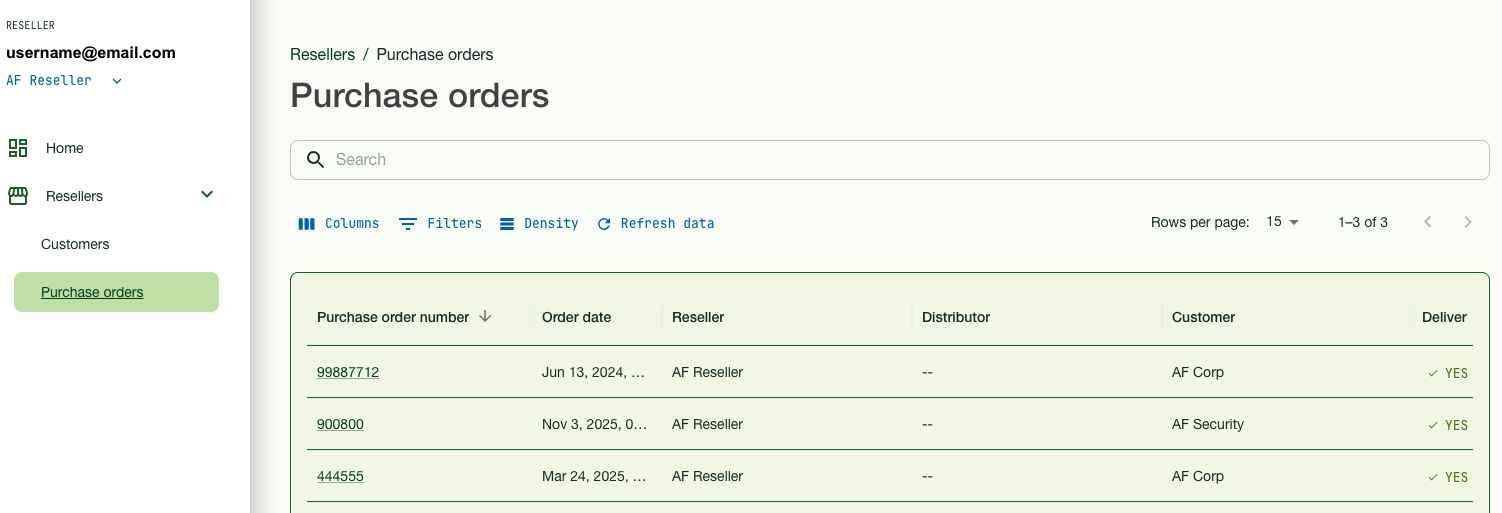
To see purchase order details for a specific customer, click the desired Purchase order number link in the list to open the Purchase order details page. For more information on purchase order details, see Viewing Purchase Order Details.
Distributor View
The Distributor view lets you as distributor view purchase order information, see what was sold to customers, and lets you provide access to purchase order information for your resellers.
Viewing Customers
To view customers and customer details, click Distributor > Customers in the left menu. This page lists customers per resellers.
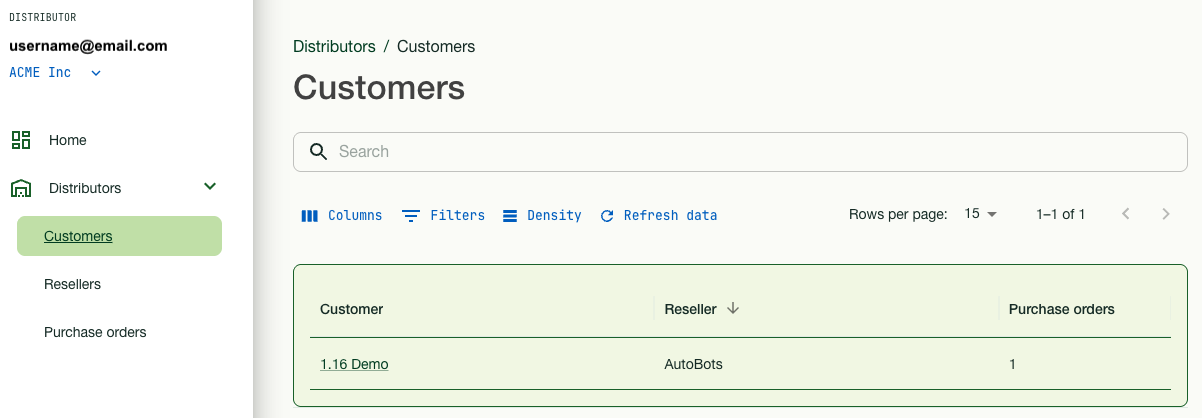
To view customer details, click the link for the desired Customer in the list to open the Customer details page.
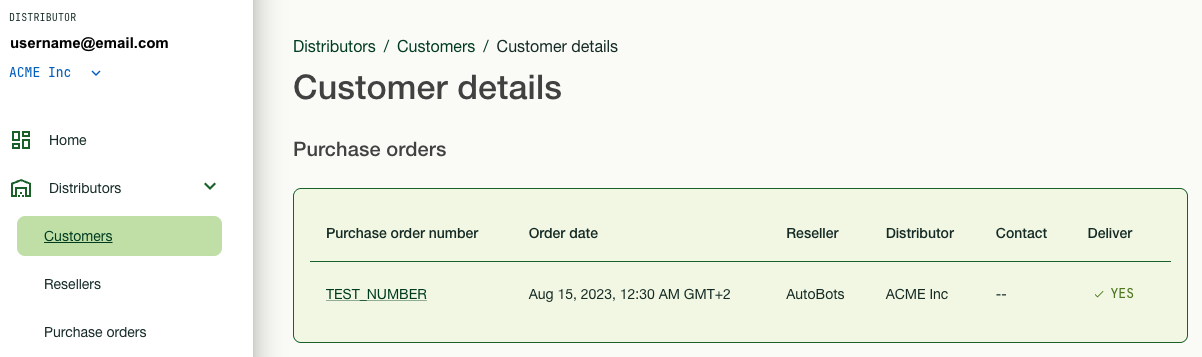
From the Customer details page, you can also click the Purchase order number link for the desired customer to view purchase order details.
Enabling Reseller PO Views
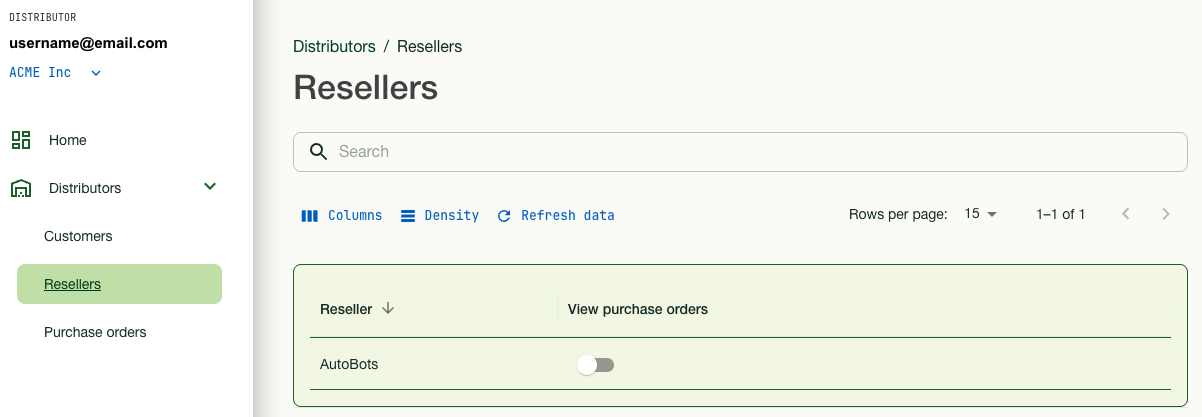
To allow your resellers to view purchase order information, click Distributors > Resellers in the left menu, and enable the View purchase orders toggle for the desired reseller in the list.
Important
If you disable this access for a reseller, then neither that reseller nor their end customers can see any inventory purchased through this reseller.
Viewing Purchase Orders
To view purchase order information, click Distributor > Purchase orders in the left menu. The Purchase orders page shows a list of purchase orders, associated customers, and resellers.
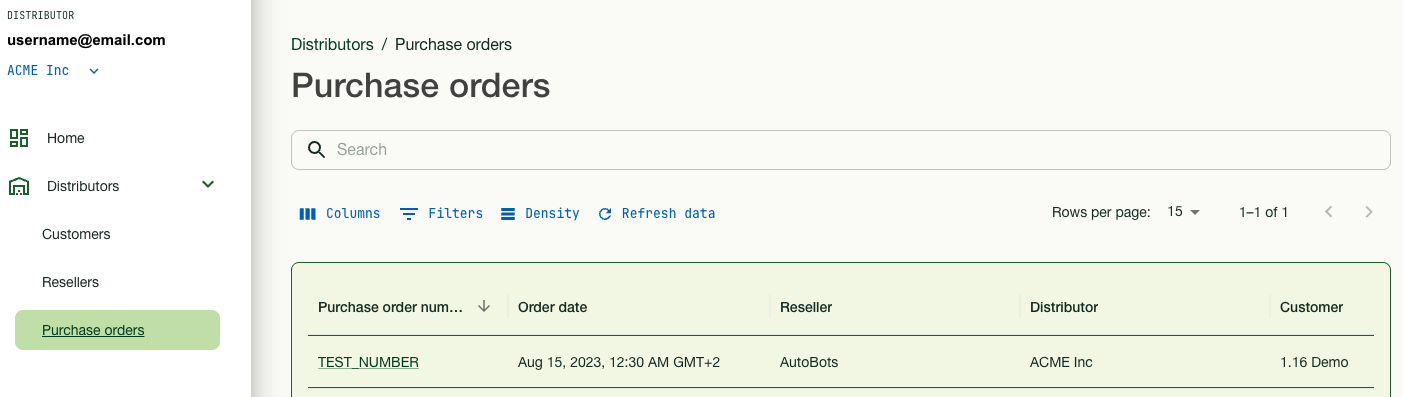
To see purchase order details for a specific customer, click the desired Purchase order number link in the list to open the Purchase order details page. For more information on purchase order details, see Viewing Purchase Order Details.